How to Organise Your Sims 4 Mods Folder
If you’ve been modding The Sims 4 for a while, you probably know the feeling of opening your Mods folder and seeing hundreds of files you can’t even identify.
When in-game errors pop up, you have to track down the problem file. That usually means scrolling through a long list of package files with names like “IncreaseSkillGain_v2.package” and wondering which creator made each one.
Organizing your Mods folder isn’t only about keeping things tidy. It helps you troubleshoot faster, update mods more easily, and remove old files without hassle. This guide will show you how to set up a folder structure that works and stays manageable as your collection grows.
Why Organisation Matters
- If your Mods folder is messy, every issue takes longer to fix.
- If a mod breaks after a patch, you need to find the right file fast.
- When a creator releases an update, you have to know where the old version is so you can replace it.
- If you want to temporarily remove certain content for testing, you should be able to find and pull it out without guessing.
A well-organized Mods folder makes all these tasks quick and easy instead of frustrating.
The Subfolder Depth Limit You Need to Know About
Before you set up any folder structure, there’s one technical limit you need to know about.
The Sims 4 only reads script mods (.ts4script files) if they’re just one folder deep. For example, Mods/ExampleModFolder/modname.ts4script will work, but Mods/ExampleModFolder/ExampleModSubFolder/modname.ts4script won’t.
You can put package files (.package) in deeper subfolders without problems, but script mods can’t be nested that way. So always keep your script mods no more than one folder deep inside the Mods folder.
This trips up a lot of people, especially if they try to make detailed subfolder structures. If a script mod stops working after you reorganize, check first to see if it’s buried too deep

Setting Up Your Folder Structure
For gameplay mods, it’s usually best to organize your Mods folder by mod, not by creator. Give each mod its own folder to keep all its files together. This makes it easier to update, remove, or troubleshoot the mod, especially if it has both package and script files. Remember, script files need to be close to the main Mods folder since The Sims 4 only reads script mods one folder deep, but package files can go in subfolders.
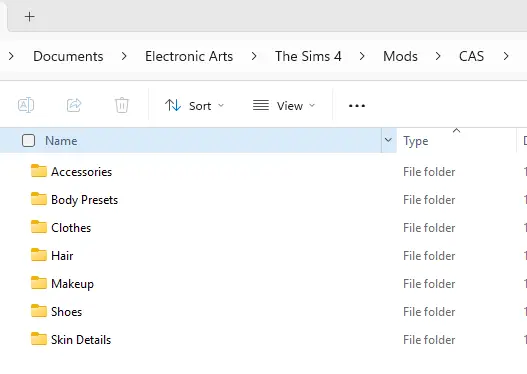
Custom content is usually easier to organize by category or creator because these files are often standalone. For example, folders like Mods > CAS > Hair, Clothing, Shoes, or Makeup work well for CC. This approach doesn’t work as well for gameplay mods with several connected files. Keeping all files for a gameplay mod in one folder also makes 50/50 testing easier, since you’re less likely to separate files that need to stay together.

Naming Conventions That Help
File names might seem like a tedious task, but they make a big difference when you’re searching for something specific in your folder.
If a mod creator applies clear names for their files or folders, you don’t need to do much. But if the names are vague or confusing, it’s worth renaming them to something you’ll recognize later. For example, a file called “package_02.package” doesn’t tell you anything. If you rename it to “CreatorName_ModernKitchenCounter.package,” you’ll always know what it is.
One thing to watch out for: don’t rename .ts4script files!
Some script mods need their original filename to work properly. Package files are usually safe to rename
Removing Old and Outdated Mods
Many players put this off, but it’s one of the most important habits to build. Old mods that haven’t been updated in months or years are a common cause of game problems. They can cause errors, conflicts, and unintended behavior even if they seem to work fine at first.
Make it a practice to check your Mods folder every time there’s a major game patch.
If a mod hasn’t been updated in a long time and the creator seems inactive, it’s usually safer to remove it. Keeping outdated mods installed “just in case” is how Mods folders get bloated and buggy over time.
When you remove a mod, make sure you delete all its files. Some mods have several package files, a script file, and sometimes extra resources. Check the mod’s download page or instructions to be sure you’re removing everything.
Keeping It Manageable Long Term
Organizing your Mods folder isn’t a one-time job. Every time you add a new mod, take a few extra seconds to put it in the right folder with a clear name. It could appear as a minor effort now, but it saves you a lot of time later.
If your Mods folder is a mess right now, you don’t have to organize everything at once. Start with your script mods and gameplay mods, since those are most likely to cause problems. Then work through CAS and build content when you have time. Even a partly organized folder is better than a totally chaotic one.
TLDR
- Create top level folders by content type.
- Group files by creator within those folders.
- Keep script mods no more than one subfolder deep.
- Use clear naming conventions so you can identify files at a glance.
- Remove outdated mods regularly, especially after major patches. And organise as you go rather than letting things pile up.
- A tidy Mods folder will not make your game run faster, but it will make your life a lot easier the next time something goes wrong.